Dust harms electronics more than it seems. It carries an electrostatic charge that interferes with the tiny currents in circuits, it clogs mechanisms and increases friction, and it holds moisture for longer, so sockets, plugs and contacts oxidise. The result is overheating, glitches and unstable signals.
In Ukrainian flats, where heating dries the air in winter and damp sets in during spring and autumn, dust and moisture wear out contacts especially fast. Here is how to clean the most common devices.
What you will need
Important: Before cleaning, switch the device off, unplug all cables and power and, where possible, remove the laptop battery. Never spray products onto equipment that is switched on, do not let liquid run into the keyboard, and test the product on a hidden area of casings and plastics first.
Step 1
Computer and tower case
Most dust collects on fan grilles, the fans themselves and circuit boards. Unplug the cables and hold the power button for a few seconds to discharge any residual current. Vacuum the grilles with a medium-power vacuum and a narrow non-metal nozzle, and lift stuck-on dust with a soft brush.
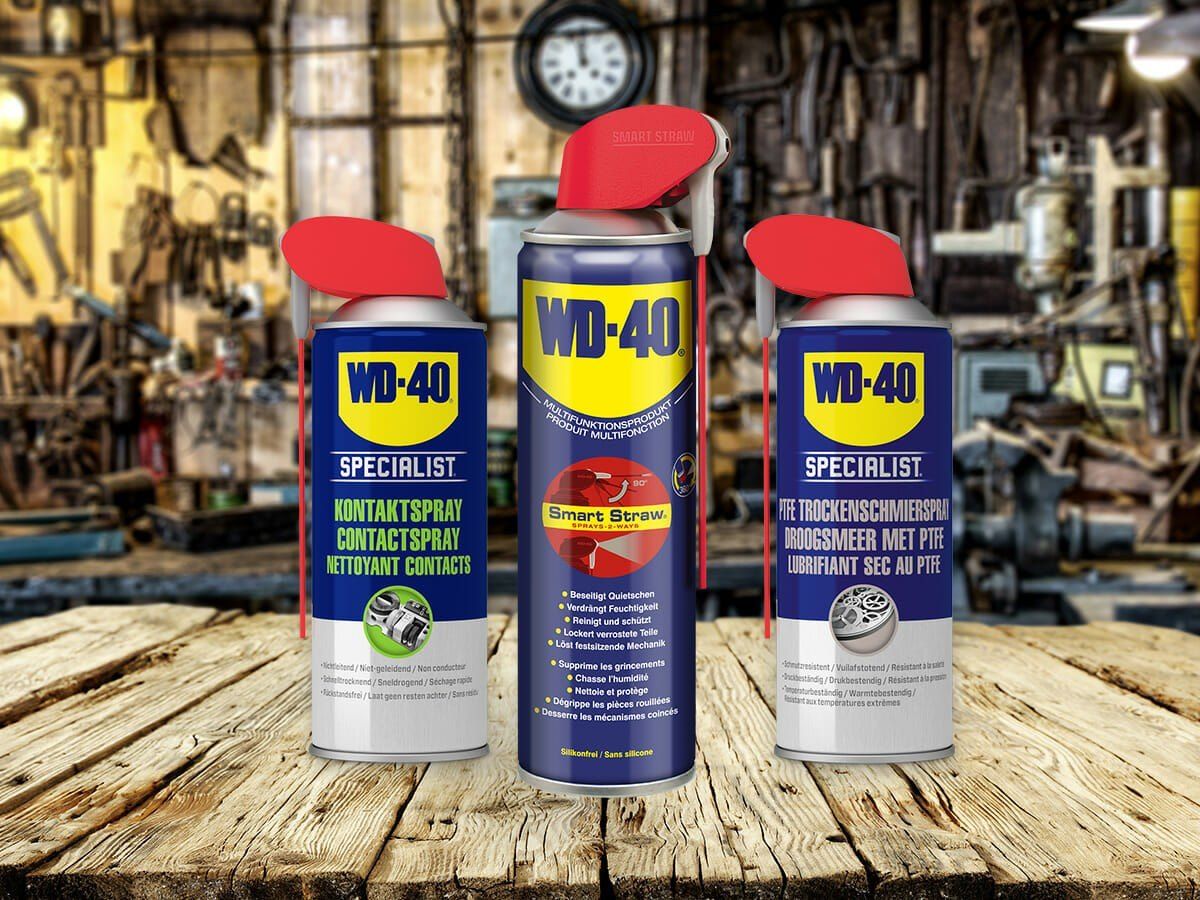
If you are confident, open the case, remove the memory modules and disconnect the ribbon cables. Treat the contacts and connectors with WD-40 Specialist Contact Cleaner: it dissolves dirt and oxidation, evaporates quickly without residue and restores conductivity.
Step 2
Keyboard and mouse
Disconnect the keyboard, turn it keys-down and shake it gently. Run a soft brush over the whole surface while it is still upside down, then vacuum up what falls out. Compressed air also works but spreads dust around the room.
Finally wipe the keys with a microfibre cloth lightly moistened with WD-40 Multi-Use, after testing a hidden spot. Use very little liquid so nothing seeps between the keys. On the mouse, remove lint around the optical sensor and wipe the body the same way.
Step 3
USB, video and audio ports
Brush or wipe off the dust, then give a short burst of WD-40 Specialist Contact Cleaner into the sockets and onto cable plugs. Do the same with the ports of external drives, printers and scanners.
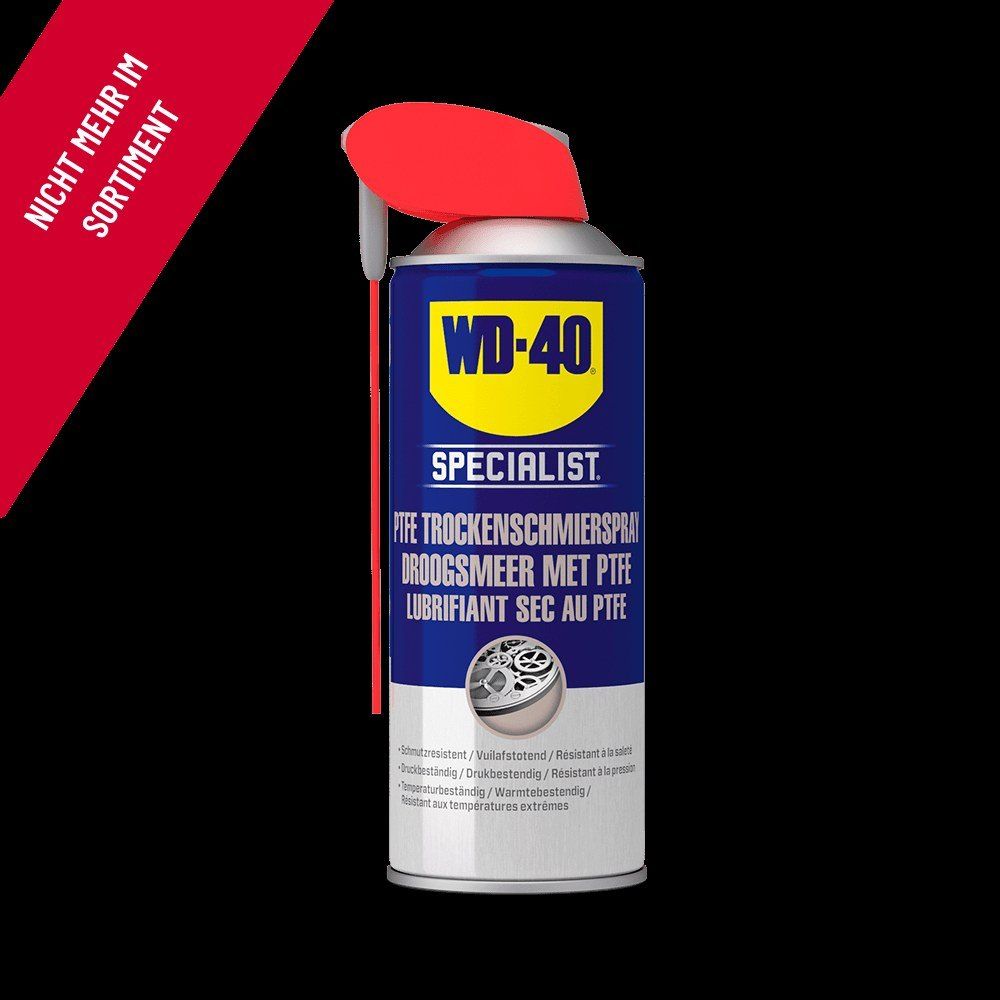
The guide rails of a scanner carriage and the moving parts of a printer can take a drop of WD-40 Specialist Silicone applied with a cotton bud. Keep it well away from the scanner glass and optics.
Step 4
TVs and monitors
Wipe the screen as often as possible with a dry or barely damp microfibre cloth; antistatic wipes reduce how much new dust it attracts. Never spray products onto the screen itself.
Treat the HDMI, aerial and other sockets on the back panel with WD-40 Specialist Contact Cleaner while the TV is unplugged.
Step 5
Speakers and players
Speaker cones attract dust easily, so prevention works best: protective grilles, covers when not in use and regular light brushing. Never rub or wet the cone.
Clean the lens of a CD player with a special cleaning disc, and treat audio sockets and speaker terminals with contact cleaner, just as on the computer.
Step 6
Other devices
Routers, set-top boxes and charging docks are cleaned the same way. Go easy on compressed air: it drives dust deeper into contact gaps and spreads it around the room. A vacuum and brush plus contact cleaner work better.
Tip: Do not stand a PC tower directly on the floor; even a low stand helps. There is far more dust near floor level, and the fans pull it in together with pet hair.
What next
Clean the outside once a month and the inside, with contact treatment, every 6-12 months. To protect metal fixings and tools from damp, keep WD-40 Multi-Use to hand.
These uses come from the experience of WD-40 users in many countries. Always follow the instructions and warnings on the product label.
More guides in «How to use».