The keyboard is probably the dirtiest part of any desk. Biscuit crumbs, dust and pet hair collect between the keys, and the keycaps pick up a greasy film from your hands. Over time keys stick, respond only sometimes and the contacts work less reliably.
A regular clean takes 5-10 minutes and needs no dismantling. Here is how to clean an external keyboard or a laptop keyboard, plus the mouse and connectors.
What you will need
Important: Before cleaning, unplug the keyboard from the computer, or shut the laptop down completely and disconnect the charger. Do not use washing-up liquid or a wet sponge: water between the keys can damage the circuit board. Use only a non-conductive, fast-evaporating cleaner on electronics.
Step 1
Shake out crumbs and dust
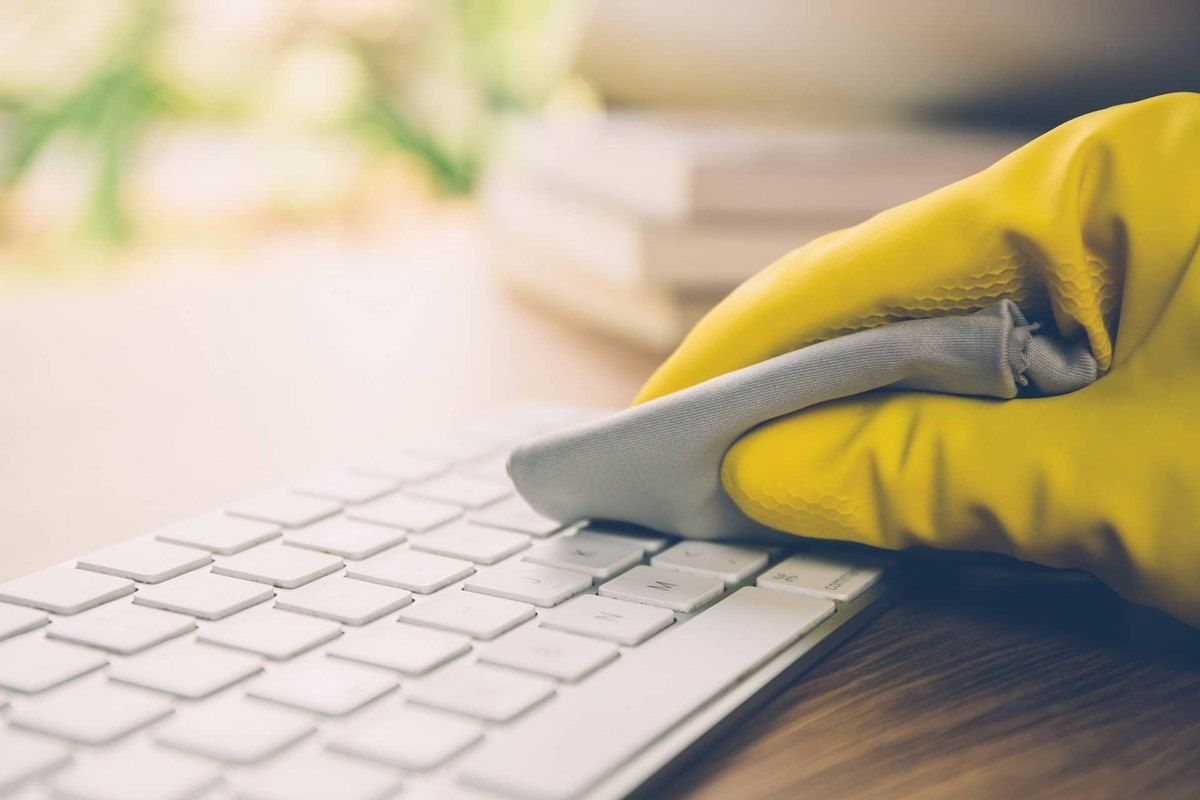
Turn an external keyboard upside down and shake it gently, tapping the case lightly. Turn a laptop over as a whole and shake it far more carefully, holding it open at an angle. This removes most of the loose debris.
Step 2
Brush and vacuum
Turn the keyboard back over and run a soft brush over the whole surface, especially between the keys. Pick up remaining fine debris with a narrow vacuum nozzle on low power so you do not pull off a keycap.

Step 3
Clean the keys with contact cleaner
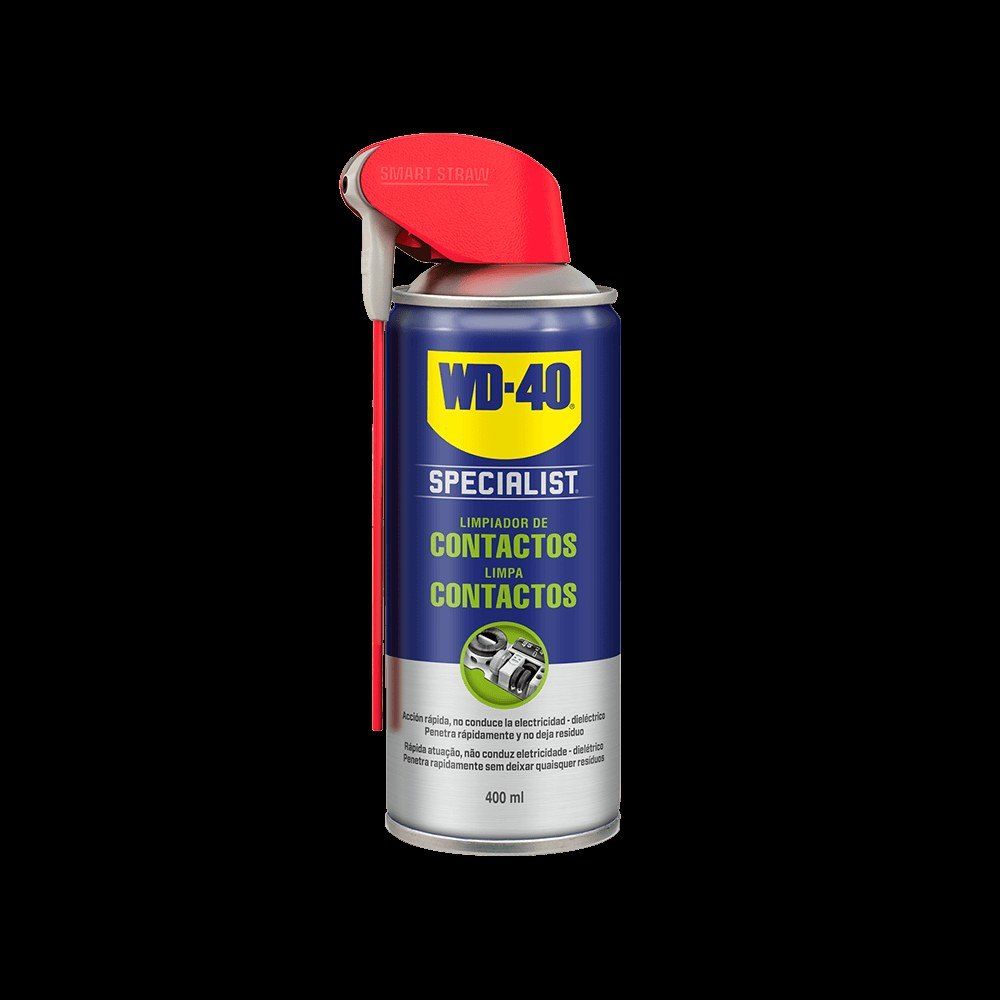
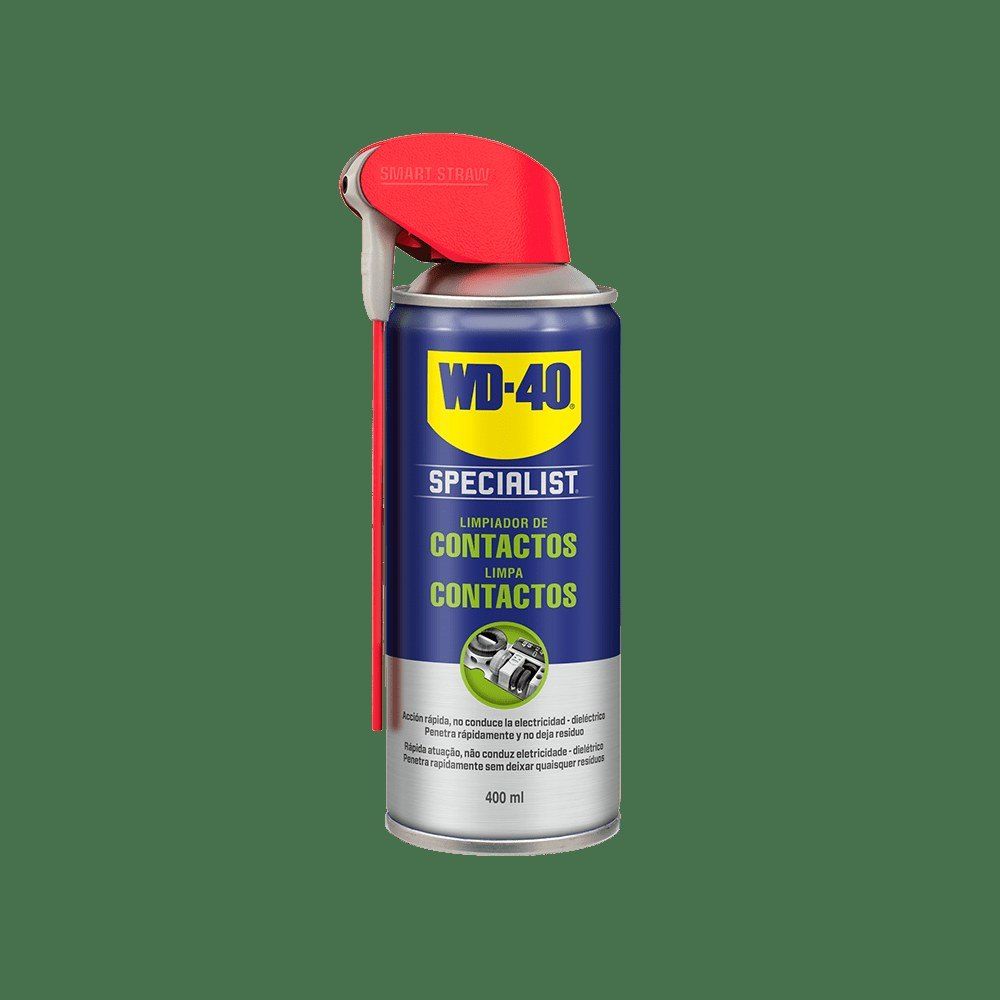
Spray WD-40 Specialist Contact Cleaner onto a microfibre cloth or, on an external keyboard, lightly onto the surface itself. It is non-conductive, dissolves grease, dust and sticky marks and evaporates within seconds without residue. Wipe each key and the case, and run a cotton bud dampened with cleaner along the gaps between keys.
Step 4
Wipe dry
Go over the keyboard with a clean dry microfibre cloth to pick up the loosened dirt. Clean the mouse too: remove lint around the optical sensor and wipe the feet that glide on the desk. If sticker glue remains on the keyboard or mouse casing, soften it with a drop of WD-40 Multi-Use on a cloth and wipe dry.
Step 5
Clean the connectors
The keyboard USB plug and the connectors of the monitor, printer and external drives also gather dust and oxidise, especially in damp flats. Spray a little contact cleaner onto cable ends and into the ports of the switched-off computer, let it dry and reconnect. Tidy the cables while you are there: tangled leads are easy to yank out or damage.
Step 6
Test it
Wait a minute for everything to dry, reconnect the keyboard and test every key in a text editor. If a single key sticks because of a spilt sugary drink, it will need to be carefully removed and cleaned underneath, or taken to a repair shop.
Tip: Avoid eating over the keyboard. If you spill a drink, unplug it (or switch off the laptop) at once, turn it upside down and let the liquid drain. The faster you act, the better the chance of saving the board.
What next
Shake out the keyboard weekly and give it a full clean with contact cleaner monthly. Every few months, vacuum the fan grilles of your computer and treat the connectors with WD-40 Specialist Contact Cleaner to extend the life of your equipment.
These uses come from the experience of WD-40 users in many countries. Always follow the instructions and warnings on the product label.
More guides in «How to use».