Laptop screens and monitors get dirty all the time: dust, fingerprints, droplets from talking and greasy film from hands. Dirt spoils the picture, and cleaning with a rough cloth or harsh chemicals leaves scratches and marks on the anti-glare coating.
Proper cleaning takes five minutes and four steps. The key rule: only a soft microfibre cloth and screen cleaner touch the panel itself, while WD-40 helps with the bezel, the stand and the ports.
What you will need
Important: Never spray any liquid straight onto the screen: it runs under the bezel onto the electronics. Do not use paper towels, strong alcohol, ammonia glass cleaners or WD-40 on the panel surface, as they can damage the coating.
Step 1
Switch off and unplug the screen
Turn off the laptop or monitor and unplug it. Dirt is easier to see on a dark screen, and the panel should cool down. Even with very little moisture, it is safer to work on equipment that is switched off.
Step 2
Remove dust with a dry microfibre cloth
Use a clean dry microfibre cloth and light strokes to lift the dust. Do not press on the panel, especially on a laptop where the screen is thin. Work in one direction, top to bottom, to avoid streaks.
If there is grit or crumbs on the cloth, shake it out: hard particles scratch the coating.
Step 3
Remove greasy fingerprints
Apply screen cleaner to the cloth, not the screen. The cloth should be barely damp. Wipe the marks without pressure, repeating if needed.
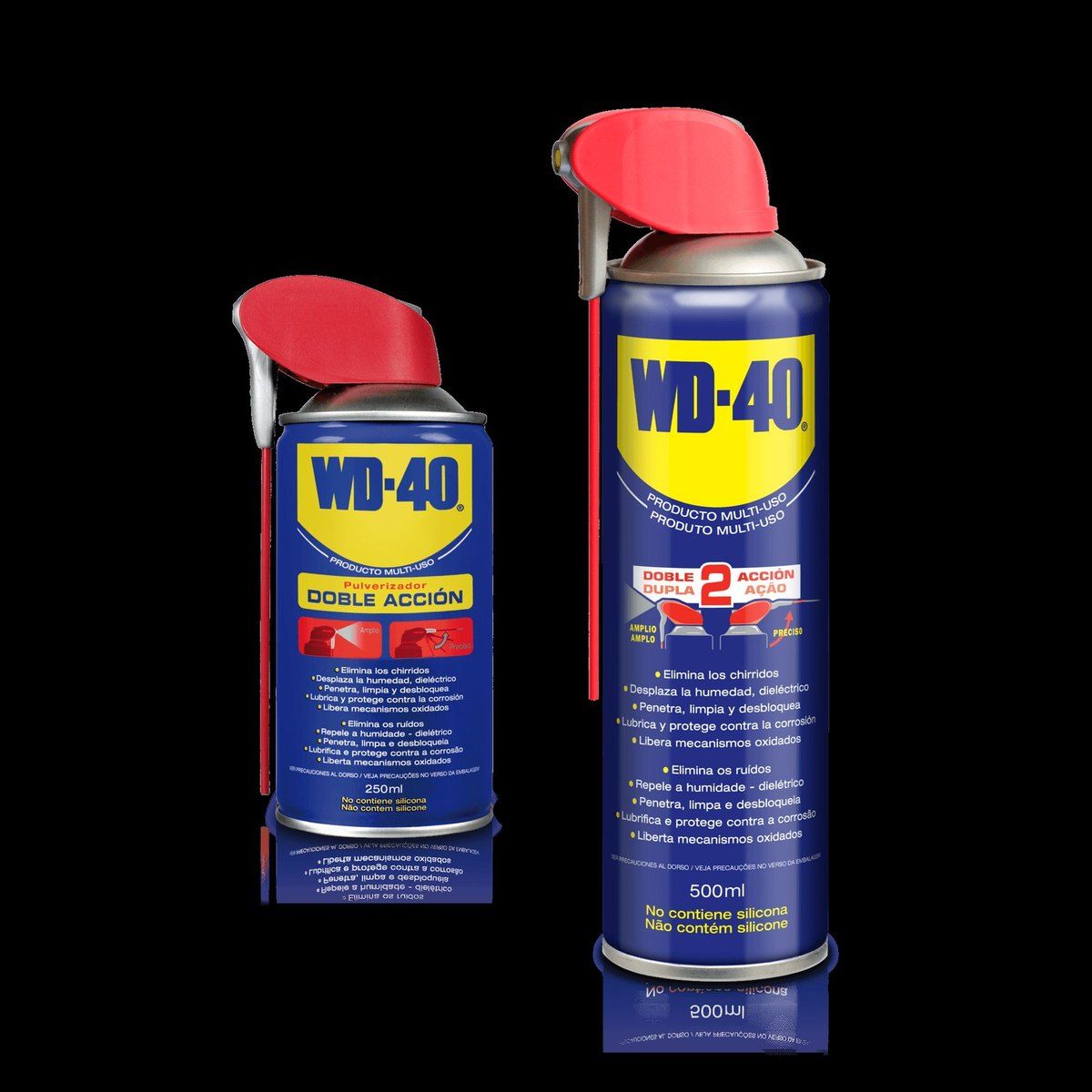
Treat the plastic bezel, casing and stand, where most of the sticky grease from hands collects, with a cloth and a drop of WD-40 Multi-Use, making sure none reaches the panel. Sticker and tape residue on the casing comes off the same way.
Step 4
Buff dry and check the ports
Go over the screen with the second dry microfibre cloth to remove remaining moisture. Wipe the bezel clean after WD-40 with a cloth you can wash afterwards.
If the image flickers or drops out, an oxidised connector is often to blame. Give the HDMI and DisplayPort sockets and cable plugs a short burst of WD-40 Specialist Contact Cleaner and reconnect the monitor once dry.
Tip: Keep a microfibre cloth just for the screen and wash it without fabric softener: softener residue causes exactly the streaks you are trying to get rid of.
What next
Dry-wipe the screen every few days and clean it with moisture weekly or as needed. For cleaning the keyboard, mouse and tower, see our separate guide.
These uses come from the experience of WD-40 users in many countries. Always follow the instructions and warnings on the product label.
More guides in «How to use».